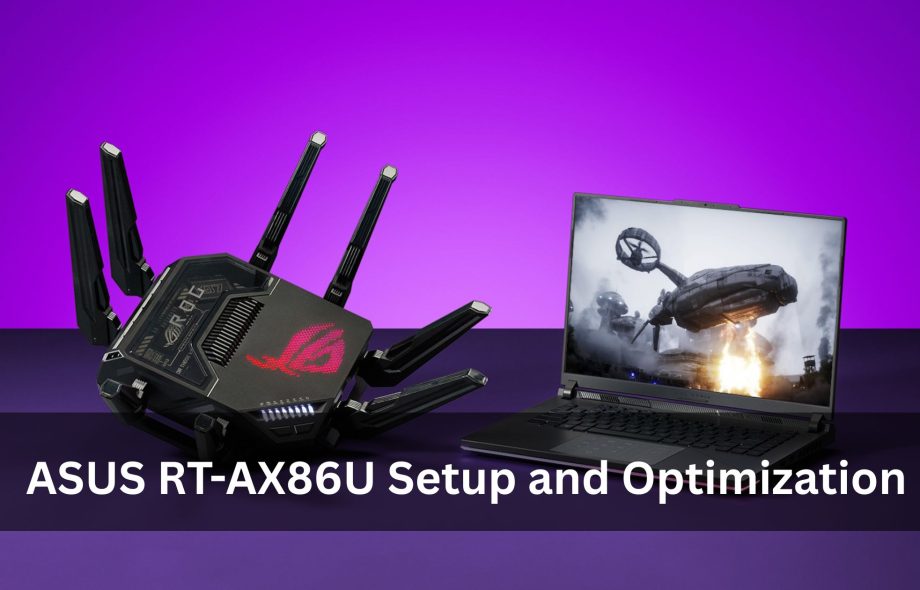
You’re already on your way to achieving next-generation Wi-Fi 6 performance if you recently bought the powerful ASUS RT-AX86U. With its lightning-fast speeds, low latency, and extensive coverage, this dual-band gaming router is ideal for streaming, gaming, smart home devices, and intensive multitasking. However, proper setup is crucial to getting the most out of your router. To make sure you’re receiving optimal performance, we walk you through the ASUS RT-AX86U setup, login procedure, reset technique, and optimization adjustments in this tutorial.
1. ASUS RT-AX86U setup: First Connection
Unpack your router and correctly connect the cords to get started. Using an Ethernet, connect modem to router’s WAN port after plugging the power adapter into the wall outlet. To start the configuration, you can use a wired or wireless device:
- For Wi-Fi, check the label at the bottom of router for the default network name (SSID).
- Just use an Ethernet to link PC to any LAN port for a wired configuration.
- After connecting, put router.asus.com into the URL bar of any browser. This will direct you to the online configuration site where you may log in to the ASUS router.
2. Internet configuration and ASUS router login
- Enter the default username and password (typically admin/admin unless your ISP has changed them) on the login screen.
- During the first setup, you will be asked to generate a new username and password for security purposes. Select something powerful and unforgettable.
Your internet type will thereafter be automatically identified by the router. Enter your login and password (PPPoE) when asked if your ISP requires them. If not, the process is finished for you via automated IP detection. You ought to be online now that the settings have been saved.
3. Setting Up a Secure Wi-Fi Network
You will also be required to generate new Wi-Fi network names (SSIDs) for the 2.4 GHz and 5 GHz bands during configuration. To attain optimal performance:
- Give each band a distinct name, such as MyHome-2.4G and MyHome-5G.
- For increased security, use WPA3 or WPA2 encryption.
- Create a complicated Wi-Fi password.
- This improves network dependability and aids in preventing unwanted access.
4: Advice for Optimizing Performance
Turn on the following performance-enhancing settings in the router dashboard to get the most out of the RT-AX86U:
802.11ax Wi-Fi 6 Mode
- To enable quicker and more reliable connections for Wi-Fi 6 compatible devices, make sure 802.11ax mode is turned on.
Adaptive Quality of Service (QoS)
- Turn on Gaming QoS if you play games or broadcast. This lowers lag and gives priority to programs that are sensitive to latency.
Choice of Channel
- To avoid interference, switch to channels 1, 6, or 11 for the 2.4 GHz band.
- If your area allows DFS channels, try them for 5 GHz to get the most bandwidth.
OFDMA and beamforming
- For better range and multi-device performance, keep both features activated.
Security Suite for AiProtection
- This protects your whole network from internet attacks and is powered by Trend Micro.
Resetting may be required in some situations, such as when you forget your login information or encounter settings problems. The ASUS RT-AX86U may be reset in two different ways:
- Soft Reset: Use router.asus.com to log into the dashboard, select Administration > Restore/Save/Upload Settings, and then click Restore.
- Hard Reset (Button Reset): Hold down the reset button on the router’s back for approximately ten seconds, or until the LED blinks. After a reboot, the router will revert to its factory settings.
You can start the ASUS RT-AX86U setup process over after the reset.
In Conclusion
Although the asus RT-AX86U Setupis designed to provide high-performance Wi-Fi appropriate for contemporary digital lives, its full potential can only be realized when it is set up and adjusted correctly. This router can future-proof your home network for years to come with its straightforward setup and reset options, robust performance capabilities, and quick login via router.asus.com. Optimizing your router settings guarantees optimal speed, coverage, and dependability whether you’re managing a smart home, streaming in 4K, or playing competitive games.
 :
https://www.pinterest.com/asussmartlogin/
:
https://www.pinterest.com/asussmartlogin/