Many people store their email in Microsoft Outlook PST files. They want to be able to access these emails from anywhere over time. People like Gmail because it’s simple to use, works on all devices, and keeps email organised. This necessitates an easy, secure way for everyone to import PST to Gmail.
We will explain everything in this guide clearly and concisely. You will discover both manual and faster ways to move your emails with confidence.
Why Do Users Want to Import PST to Gmail?
There are many reasons why people move to Gmail:
- Gmail works perfectly on both mobile and the web.
- It provides free storage and clever ways to organise it.
- You can always search for and read your emails.
- Gmail works well with other apps and tools.
PST files stay on one computer. You can access them from anywhere if you move them to Gmail. This is why many people want to import PST emails into Gmail quickly.
Can You Migrate PST to Gmail Directly?
Sadly, you can’t upload PST files directly to Gmail. You can’t just drag a PST file into Gmail like you would a regular file.
You’ll need to use a roundabout method to get your PST emails into Gmail. There are two main ways:
Using Outlook by hand
Using a customised tool to automate the process
Let’s start with the manual way.
Manual Method to Convert PST to Gmail
The manual way is free, but it takes time and patience. It sends your emails using Microsoft Outlook.
Step 1: Put your Gmail account in Outlook
On your PC, open Microsoft Outlook.
Choose Add Account from the File menu.
Log in with your Gmail address.
Permit Outlook to access your Gmail account.
Outlook will now show your Gmail account next to your PST files.
Step 2: Open the PST file and Outlook.
To import or export, click File, then Open & Export.
Click Next after choosing Import from another application or file.
Choose the Outlook Data File (.pst).
Look through your files and choose your PST file.
To import emails, click Finish.
Outlook will now show all of your PST emails.
Step 3: Move your emails to Gmail
In Outlook, open the PST folders.
Select the folders or emails that you wish to transfer.
Put them in your Gmail folder by dragging and dropping them.
Outlook will start sending the emails to Gmail. This could take a while, depending on how big the file is.
Step 4: Check Gmail for Emails
When the sync is done:
Sign in to your Gmail account.
Make sure that all of your emails are in the right folders.
Limitations of the Manual Method
The manual method works, but it has certain issues:
- It takes a long time for massive PST files.
- You need to have Outlook installed on your computer.
- There is a chance of making mistakes because you have to do everything by hand.
- If the procedure is stopped, there is a chance of missing emails.
This method works well for little PST files. A speedier method is better for big files.
Faster Way to Import PST to Gmail
Moving Outlook emails to Gmail by hand can be slow and difficult because messages don’t go directly, and the organisational structure can get lost. A software-based method is easier since it can handle big files, keep emails structured, and make sure attachments stay intact. With WholeClear PST to Gmail Converter, users can move data quickly and without making mistakes or having to do the same thing over and over again. This makes the whole Import PST to Gmail faster and more dependable than the old-fashioned way of doing things.
How It Works
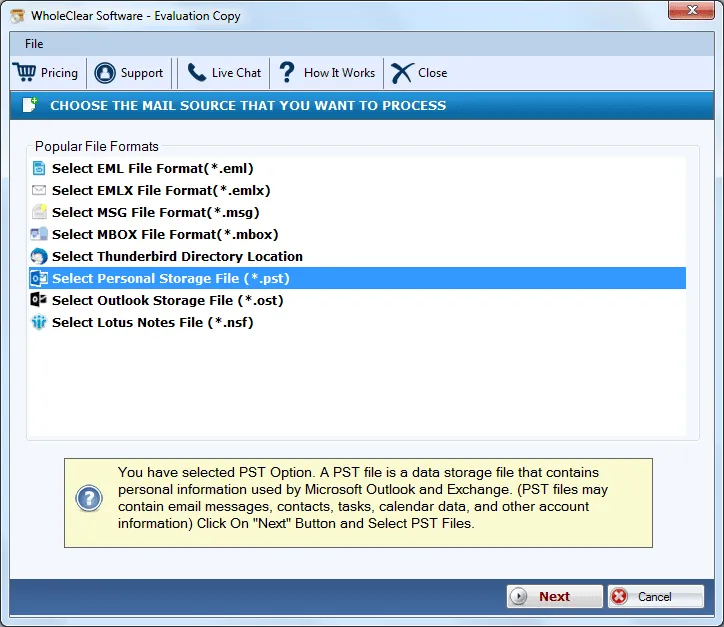
- Start the software on your computer.
- To add a file, click on “Add File” or “Browse” and choose the PST file.
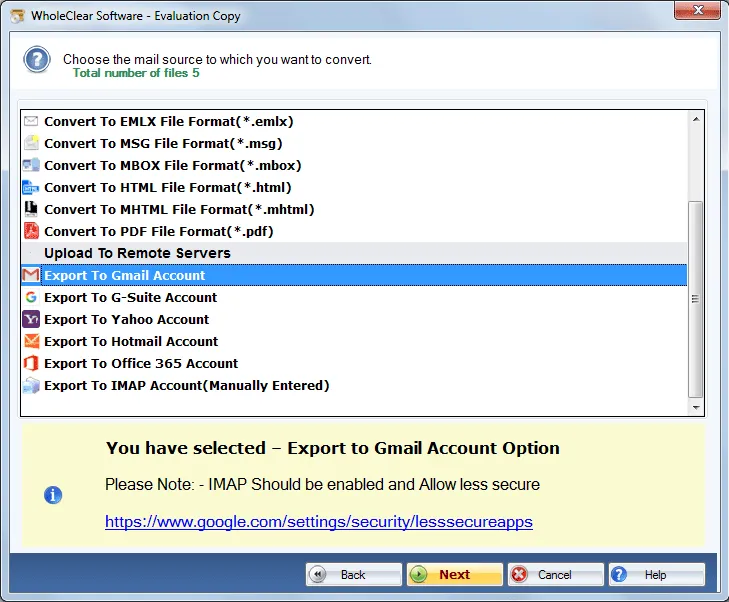
- Choose Gmail from the list of export possibilities.
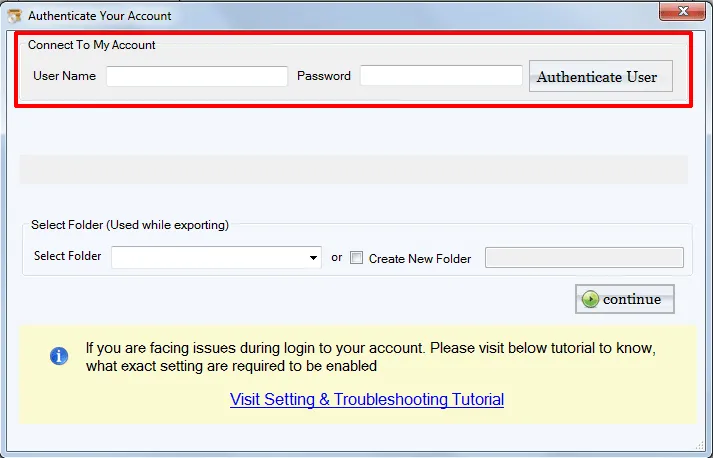
- Type in your Gmail ID and give permission.
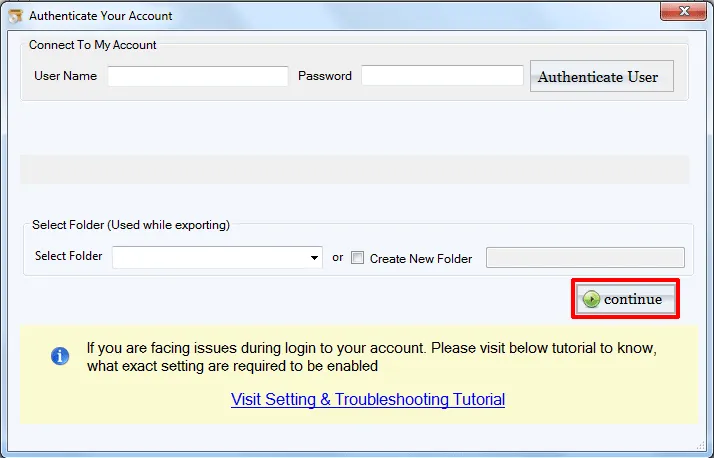
- Press Convert or Start Import.
Benefits of Using a Simple Solution
- It saves significant time and effort.
- Easily handles big PST files.
- Keeps the structure of the folder.
- Reduces mistakes made by people.
- The UI is easy to use and understand for beginners.
People who don’t know much about technology can finish the process with just a few clicks.
What a Good Tool Should Have
Look for these things while picking a solution:
- A clean and straightforward UI.
- Quick transmission speed.
- Email migration that is safe and secure.
- Help with big PST files.
- Choose specific folders or emails.
A decent tool makes sure that your data stays safe and structured the whole time.
Tips for a Smooth PST to Gmail Import
- Make sure your internet connection is reliable.
- While the transfer is going on, keep your Gmail account open.
- Don’t stop the process in the middle.
- Import big files into smaller groups.
- Check your Gmail for emails after the import is done.
If you follow these recommendations, the process will go more smoothly, and errors will be less likely.
Conclusion
It doesn’t have to be hard to move your emails. Gmail does not let you upload PST files directly, but there are easy ways to import PST to Gmail. For small files, the manual method works well. For huge files, a specialised solution makes the procedure faster, safer, and easier. You can keep all of your emails organised, keep your organisational structure in place, and access them from any device at any time if you follow the appropriate procedures. Choosing the appropriate way to do things makes the move go smoothly and makes using Gmail easy.
 :
https://www.pinterest.com/
:
https://www.pinterest.com/